You need the API key issued by Perfitt and permission to edit your store's HTML. Write the sync items and the button position in the initial installation request form and send it to your Perfitt contact. If you do not have a key yet, contact us.
1. Insert PerfittSize Script Tag
PerfittSize can be easily installed by inserting a script into your site.
Put the code below on every page of your website. Usually once, in the shared layout (head) that all pages use, is enough. Put it near the top of the <head>.
<script
    id="PerfittSize-JS"
    type="text/javascript"
    src="https://perfittsize.perfitt.io/js/PerfittSize.js?apiKey=##API_KEY##"
    charset="UTF-8"
></script>
On a Shopify store, add the same script inside the <head> of the theme.liquid file, under Online Store › Themes › Edit code in the admin.
apiKey: In the src of the script tag, you must replace ##API_KEY## with your client-specific API_KEY value issued by Perfitt.
2. Place the Perfitt button
There is one Perfitt button: the size indicator. It shows whether this shoe runs large or small (its size tendency), with a foot-measurement button underneath. You decide two things: where the button goes and its color.
Size indicator
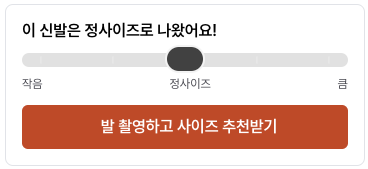
- Shown automatically on product pages (PRODUCT) once the product data is collected.
- The tendency text is set by Perfitt from fit-test and review data. Clients cannot change it.
- The measurement button's background and text color can match your brand. Write the color codes in the request form (e.g. background
#111927, text#FFFFFF). Avoid low contrast between background and text, or the button is hard to see. - You can place more than one on a page.
Choose the area
Create the area in your HTML where the button should render, and write its CSS Selector in the button position tab of the initial installation request form for your Perfitt contact.
On a page with the HTML structure above, to render the Perfitt button inside the div with id perfitt-block-1, enter #perfitt-block-1 as the CSS Selector.
perfitt-block-1 area in the code.<head>
<!-- ... omitted ... -->
<script id="PerfittSize-JS" type="text/javascript" src="https://perfittsize.perfitt.io/js/PerfittSize.js?apiKey=##API_KEY##" charset="UTF-8"></script>
<!-- ... omitted ... -->
</head>
<body>
<!-- ... omitted ... -->
<div id="perfitt-block-1"></div>
<!-- ... omitted ... -->
</body>3. Check the installation
Open a product page on a phone; if the Perfitt button appears, the installation is done. On desktop, pressing the button shows a QR code to continue on a phone instead of the measurement screen, so verify on mobile.
If the button does not appear, go through "The button does not show" in Troubleshooting from the top.
Previous button types
Some clients that onboarded before 2025 still use the types below. They are not an option for new integrations.